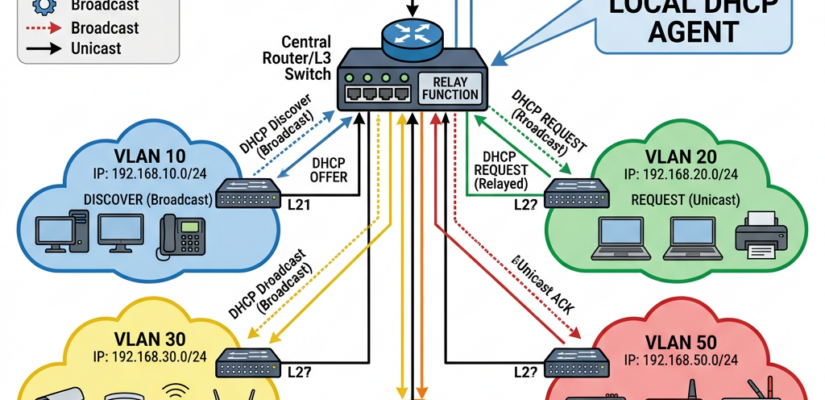
Step 2 of the April 2026 Network Redesign
Task 8 — Kea DHCP HA: Replacing the Simple with the Complex
How a failing SFP+ port led me down a rabbit hole of enterprise DHCP, AI-assisted development, and a home network that now runs better than most small offices.
The Incident That Started Everything
It was a normal evening. Someone wanted to watch live TV via HDHomeRun on PLEX. Nothing. Home Assistant automations stopped firing. Local services that had nothing to do with the internet — completely dead.
The culprit: a failed SFP+ port on my aggregation switch that isolated the home network from the UniFi Dream Machine Pro. The UDM Pro was my Layer 3 gateway, my DHCP server, my firewall, my DNS — everything. When the link to it went down, everything local went with it. PLEX, HDHomeRun, Home Assistant, all of it.
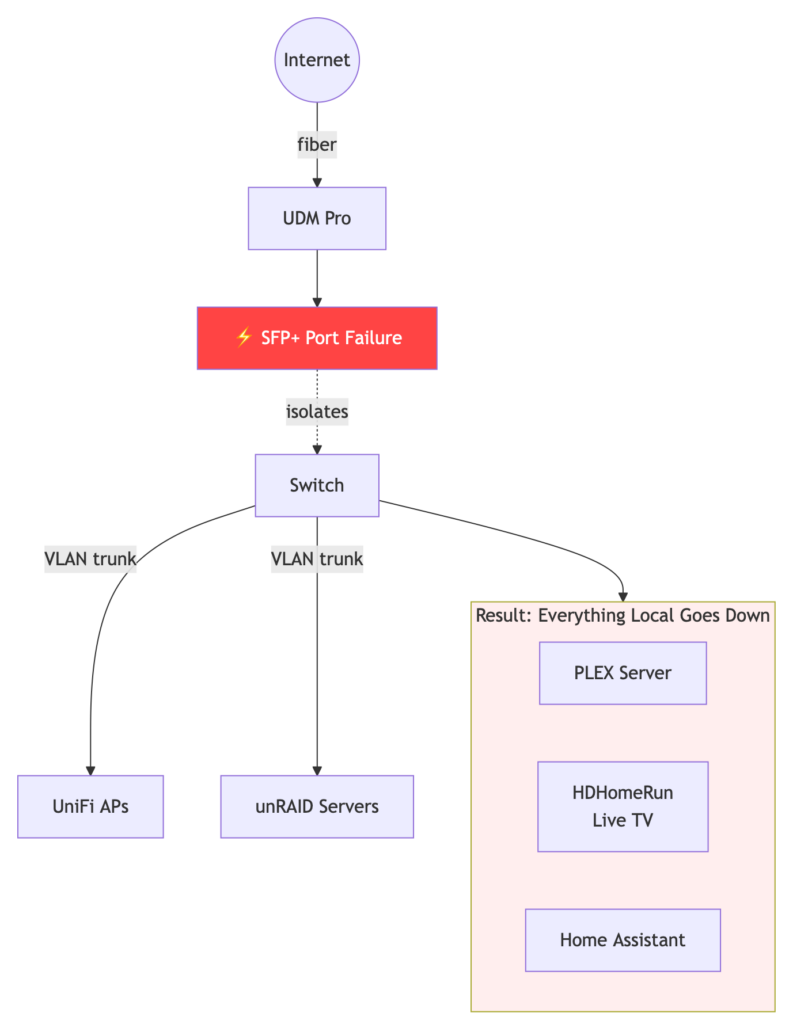
The fix was straightforward in concept: move Layer 3 switching to the aggregation switch itself, removing the UDM Pro from the critical path for local traffic. But straightforward in concept rarely means straightforward in execution. This single change cascaded into what became an 8-task grand project to modernize the entire home network stack.
This post is about Task 8 — replacing the UDM Pro’s DHCP server with ISC Kea DHCP in high-availability mode. What I thought would take a few hours took two full days, with more than half that time on this single task alone.
The Grand Project — Context
Moving L3 switching from the UDM Pro to the switch meant losing a few things that needed to be rebuilt elsewhere:
- Task 1: Suricata memory reduction on UDM Pro — attempted, failed, abandoned
- Task 2: Physical port redundancy with RSTP — completed successfully
- Task 2.5: What I thought was a quick IoT hostname change — turned into hours of DNS archaeology (more on this below)
- Task 3: Move Home Assistant to its own VLAN with IPv6 preserved
- Tasks 4-7: Switch configuration, AdGuard deployment, sync, and per-VLAN DNS
- Task 8: Replace UDM Pro DHCP with Kea DHCP HA — this post
Every home router on the market handles DHCP through a GUI. Click a few boxes, set your range, done. There is no simple unRAID community app that does this. When you leave consumer hardware behind, you inherit enterprise complexity — and enterprise documentation written for people who already know what they’re doing.
The DNS Rabbit Hole — Task 2.5
Before getting to DHCP, I need to explain the DNS problem that made the DHCP replacement non-negotiable. This is the part of the project that taught me the most about how much the UDM Pro was quietly doing behind the scenes — and interfering with.
The Goal
Replace hardcoded IP addresses on IoT devices (smart plugs, sensors, NSPanel displays) with fully qualified hostnames like mqtt.cossaboon.net. Infrastructure changes without reconfiguring every device. Simple idea.
The Problem Stack
1. Public DNS wildcard conflict. GoDaddy has a wildcard *.cossaboon.net pointing to my external IP. Internal services need the same hostname to resolve to private IPs. This is split-horizon DNS — different answers depending on where the query originates. Also this is a port 80/443 solution (Web Traffic) not a specific port like MQTT needs.
2. AdGuard DNS rewrites inconsistently overridden. AdGuard correctly rewrites domains that have no public record. But when a domain has a matching upstream answer — like mqtt.cossaboon.net resolving to my public IP via GoDaddy — AdGuard’s rewrite was inconsistently overridden by the upstream response. A behavioral quirk in this version.
3. The UDM Pro DNS interception problem. This was the root cause of most of the debugging time. The UDM Pro transparently intercepts DNS queries from VLAN 30 (IoT) before they ever reach AdGuard:
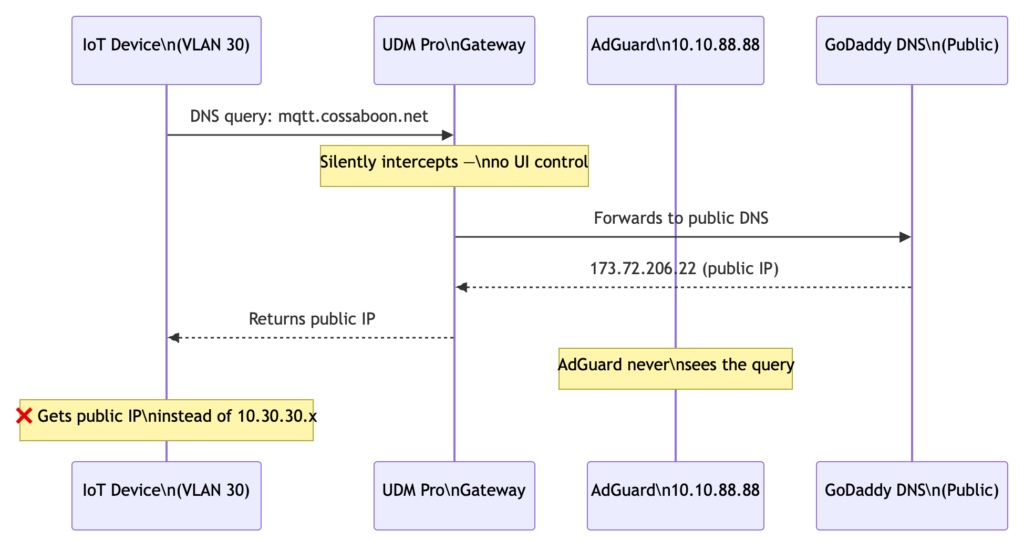
- IoT devices are configured with AdGuard as their DNS server via DHCP
- Queries leave VLAN 30, cross to VLAN 40 through the UDM gateway
- The UDM silently proxies the query using its own public resolver
- Returns the GoDaddy public IP — bypassing all AdGuard rewrites entirely
- No queries from VLAN 30 devices ever appeared in AdGuard’s query log
4. No UI control. UniFi offers no visible setting in this firmware to disable DNS interception for specific VLANs. It happens silently at the routing layer.
The Solution: VLAN-Local DNS
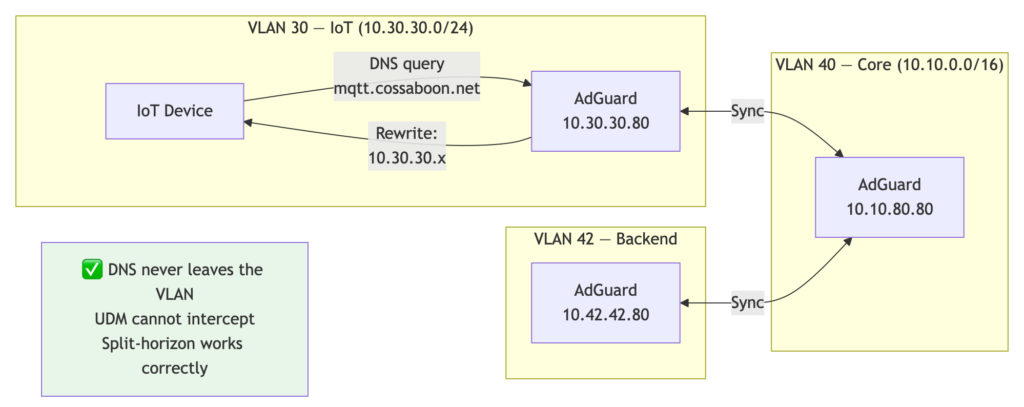
Place an AdGuard instance on every VLAN with a local IP in each subnet. DNS queries from VLAN 30 go to 10.30.30.80 — traffic never leaves the VLAN, never touches the UDM gateway, and cannot be intercepted. AdGuard receives the query directly and applies rewrites correctly.
I needed control over DHCP next. The UDM’s DHCP is great, but, back to the original problem, if the UDM is not there, I loose local DHCP, and clients go self assigned.
At this point, why not just dual link to the UDM? DONE, added a second SFP+, and use Rapid Spanning Tree to block one as the UDM does not do LAG. There will always be a single point of failure, but, I can back up the local hosts, and separating the DHCP, may help with memory on the UDM.
Task 8 — The DHCP Decision
Why Kea DHCP?
ISC Kea is the open source DHCP server that replaced ISC DHCP (the old dhcpd) as the maintained standard. It supports:
- Hot-standby high availability — two nodes, one active, automatic failover
- Per-subnet option configuration (different DNS server per VLAN)
- Host reservations (fixed IP by MAC address)
- A REST API for querying and managing leases
- ISC Stork for centralized monitoring
The alternative was dnsmasq or dhcpd, both single-instance with no native HA. Given that the whole project started because of a single point of failure, running a single DHCP server felt like building the same problem in a different place.
The Infrastructure
I run two unRAID servers: DockofTheBay and SpaceDock. Each got a Debian LXC container managed by the ich777 LXC Community Apps plugin:
- kea-primary on DockofTheBay —
10.10.10.10 - kea-secondary on SpaceDock —
10.10.10.11
Each container gets five network interfaces — one per VLAN — with static IPs outside the DHCP pool ranges. The primary serves all leases in hot-standby mode. The secondary stays synchronized and takes over automatically if the primary fails, then syncs back when the primary returns.
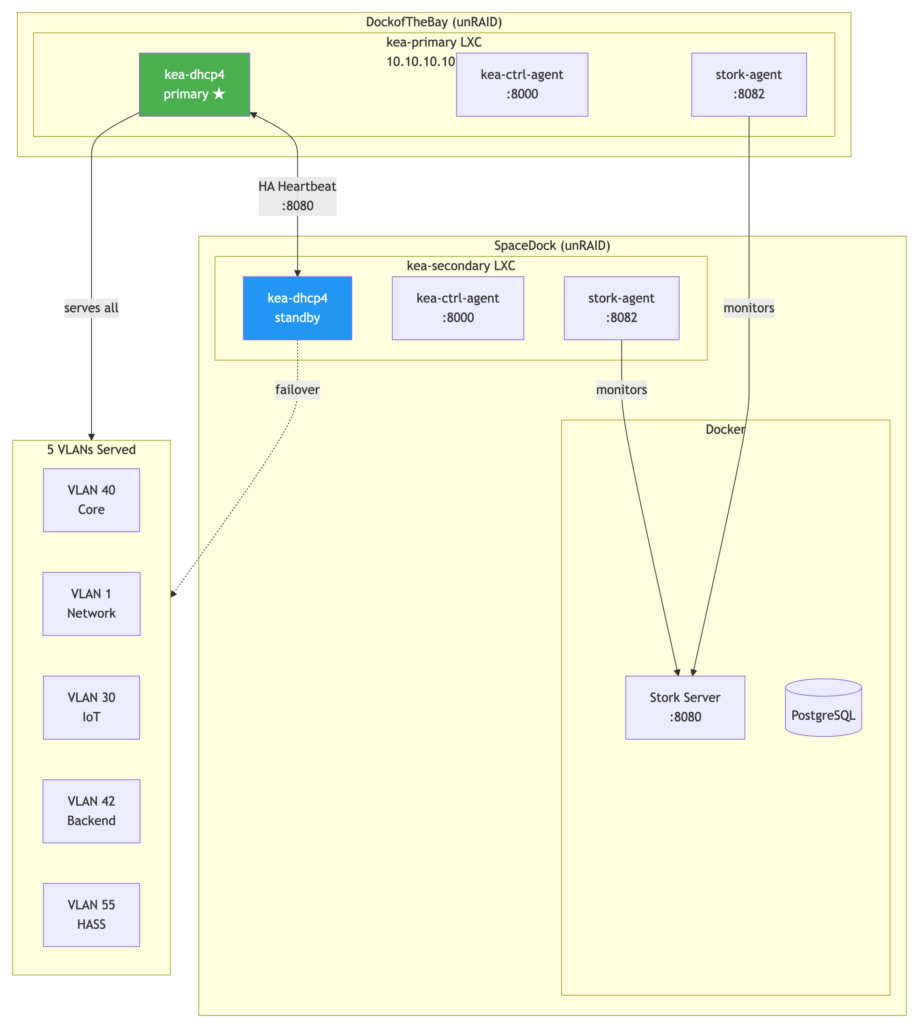
For monitoring, ISC Stork runs as a Docker Compose stack on SpaceDock. Stork agents run natively inside each Kea LXC container (not in Docker — more on why below).
The Five VLANs
| VLAN | Name | Subnet | DNS Server |
|---|---|---|---|
| 40 | Core (Don’t Panic) | 10.10.0.0/16 | 10.10.80.80 / 10.10.88.88 |
| 1 | Network Elements | 172.16.1.0/24 | 172.16.1.80 / 172.16.1.88 |
| 30 | IoT (MostlyHarmless) | 10.30.30.0/24 | 10.30.30.80 / 10.30.30.88 |
| 42 | Backend (DeepThought) | 10.42.42.0/24 | 10.42.42.80 / 10.42.42.88 |
| 55 | HASS (Marvin) | 10.55.55.0/24 | 10.55.55.80 / 10.55.55.88 |
Yes, the VLAN names are Hitchhiker’s Guide references. Don’t Panic.
The Build — Where Things Got Interesting
Lessons From the Trench
Two days. Here is what actually consumed the time:
LXC container networking. The ich777 plugin creates containers with systemd-networkd, not the traditional /etc/network/interfaces. Static IP configuration goes in /etc/systemd/network/10-ethX.network files with DHCP=no and IPv6AcceptRA=no explicitly set — or IPs stack on top of each other as secondary addresses. This is not in the Kea documentation.
Socket path mismatch. Kea 2.6.5 on this Debian build uses /var/run/kea/ for its control socket. The default configs reference /run/kea/. One character difference, nothing in the logs tells you why services won’t talk to each other.
Port collision. Kea’s High Availability hook binds an HTTP listener for peer-to-peer communication. The Kea control agent also binds an HTTP listener. Then ISC Stork agent wants its own port. All three defaulted to overlapping ports. The solution: ctrl-agent on 8000, Kea HA on 8080, Stork agent on 8082. Documented nowhere in a single place.
Stork agent certificate ownership. The stork-agent register command must be run as root to get certificates from the server. But the Stork agent systemd service runs as the stork-agent user. Result: service crashes immediately with permission denied on its own certificate files. The fix is a chown after every registration. Every time. If you forget, it fails silently until you check the journal.
Stork Docker agent vs. LXC Kea. I initially tried running the Stork monitoring agent in Docker alongside the Stork server. It cannot discover Kea processes running inside an LXC container — different process namespaces. The agent must run inside the Kea LXC containers directly.
No official Stork Docker image. The ISC registry image referenced in various tutorials does not exist at the tag you’d expect. I built it from scratch using the Cloudsmith apt packages in a Dockerfile.
Smart quotes. Copying commands from a rendered Markdown editor into a terminal replaces straight quotes with typographic curly quotes. JSON becomes invalid. The Kea API returns an error. The Python parser returns “No leases found.” This caused more confusion than the port conflicts. The solution was to stop putting commands in documentation and start writing shell scripts instead.
The DHCP complexity itself. Every home router does this with a three-field web form. The Kea configuration is a multi-hundred-line JSON file with hook libraries, HA peer definitions, subnet blocks, pool ranges, option data arrays, and reservation entries. The documentation is thorough but assumes you already know what DHCP HA means at a protocol level. AdGuard Home’s DNS configuration, by comparison, took about eight minutes.
AI Co-Development
This project was built with Claude as an active development partner across multiple sessions. A few honest observations about that process:
AI-assisted development works best when the problem scope is well-defined. This project suffered from classic scope creep — each solved problem revealed the next one. When a single context window tries to hold the whole project, errors compound. The approach that worked: break the grand project into discrete tasks, give each task its own session with a well-crafted prompt summarizing all prior lessons learned.
The AI made mistakes. Port assumptions, socket path assumptions, Docker image assumptions — all confidently stated, all wrong. The value wasn’t in getting it right the first time. The value was in the iteration speed. What would have taken three hours of reading Kea documentation took twenty minutes of back-and-forth to isolate and fix. The human still has to know enough to recognize when the AI is wrong. You also need tokens, ran out of them twice on this project, and needed to wait for the next time cycle. If you were a business, I can see people buying more to move the project, but for me, it was proof that it was time to take a walk.
By the end of the project, the session prompt capturing lessons learned had grown to 26 items. That prompt is now the institutional memory of the project — paste it into a new session and resume without re-learning every mistake. This has been a key best practice for me. At the end of a session when it is working with claud
Based on this chat please provide a well crafted AI Prompt that would get us back to this point with the lessons learned
Also please provide a summary of what was achieved. Provide a mermaid diagram if applicable. If applicable also the Memory.md
The Result
What’s Running
- Kea DHCP HA serving all five VLANs — primary hot-standby, secondary ready
- 18 host reservations on VLAN 40 (NAS3, NAS2, PiKVM, JukeAudio, HomeRun-1, HomeRun-2, AdGuard instances, and more)
- 30 active IoT leases on VLAN 30
- ISC Stork monitoring dashboard showing HA state, subnet utilization, and lease counts for both nodes
- Monthly maintenance scripts running in unRAID User Scripts — apt upgrade, service check, HA heartbeat — fully automated
- Rolling upgrade scripts for major version changes — secondary upgraded first, primary second, DHCP never drops
The Wow Moment
The moment it clicked was running this from my Mac terminal:
./kea-leases.sh

Select VLAN:
  1) VLAN 40 — Core        (10.10.0.0/16)
  2) VLAN 1  — Network     (172.16.1.0/24)
  3) VLAN 30 — IoT         (10.30.30.0/24)
  4) VLAN 42 — Backend     (10.42.42.0/24)
  5) VLAN 55 — HASS        (10.55.55.0/24)

Enter choice [1-5]: 3

IP                   Hostname                       MAC
----------------------------------------------------------------------
10.30.30.108                                        f8:3d:c6:01:db:91
10.30.30.101         ring-43310f                    9c:43:1e:43:31:0f
10.30.30.179         nspanelone                     c0:49:ef:fa:41:d0
10.30.30.110         piaware                        b8:27:eb:66:a7:6f
...
Total: 30 leases
A menu. A clean table. Running from my Mac. Querying a custom-built DHCP HA cluster. That’s the moment it stopped feeling like infrastructure and started feeling like a project I’m proud of.
The Operation Scripts
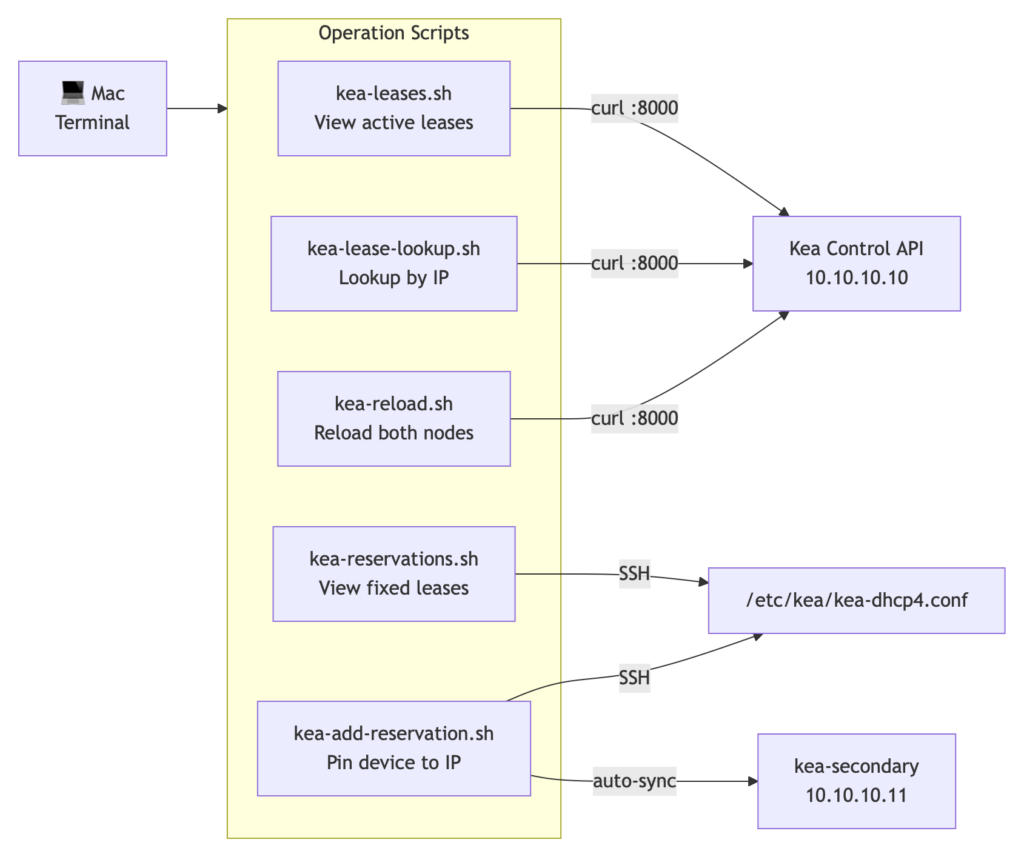
Because copying commands from a Markdown document into a terminal is apparently how you corrupt JSON, the entire operational workflow lives in shell scripts:
| Script | Purpose |
|---|---|
| kea-leases.sh | Menu → pick VLAN → formatted lease table |
| kea-lease-lookup.sh | Enter IP → full details with expiry time |
| kea-reservations.sh | All fixed reservations across all VLANs |
| kea-add-reservation.sh | Interactive: pin device to IP, syncs both nodes automatically |
| kea-reload.sh | Reload config on both nodes, confirm success |
| kea-upgrade-rolling.sh | Rolling major version upgrade — secondary first |
| stork-upgrade.sh | Stork server + agent major version upgrade |
What’s Next
The operation scripts work, but they’re still a terminal. The wow moment of seeing leases in a clean table has me thinking about what comes next: a lightweight web app that wraps the Kea REST API in a proper interface. VLAN selector, live lease table, click-to-reserve, HA status indicator. The kind of thing every home router ships with, rebuilt on top of infrastructure that actually scales.
The Kea API is already there. The authentication is already there. The data is already there. It’s just a front end away from feeling like a commercial product — built entirely on open source, running on hardware I own, with no cloud dependency and no subscription.
That might be Task 9.
Lessons Learned
- Consumer hardware hides complexity. The UDM Pro’s three-field DHCP form is backed by the same RFC 2131 protocol. When you replace it, all that complexity becomes your problem to understand and configure.
- Single points of failure are everywhere. The project started because of one SFP+ port. The investigation revealed that DNS, DHCP, and routing were all single-threaded through one device. HA for DHCP was the right call.
- The UDM Pro is opinionated in ways it doesn’t document. Silent DNS interception, firmware-level DHCP behavior, and undocumented port forwarding all cost hours of debugging time.
- AI co-development is a multiplier, not a replacement. You still need to know enough to recognize when it’s wrong. The value is in iteration speed, not correctness on the first pass.
- Break large projects into scoped tasks. Each task gets its own session, its own prompt, its own documented lessons. The alternative is a 10,000-token context window full of compounding errors.
- Infrastructure is documentation. Shell scripts, Memory.md files, AI prompts, upgrade procedures — the project isn’t done when the services are running. It’s done when the next person (or future you) can understand, operate, and upgrade it without starting from scratch.
Resources
- ISC Kea Documentation
- ISC Stork on GitLab
- AdGuard Home
- ich777 LXC Plugin for unRAID
- ISC Cloudsmith Package Repository
Task 8 complete. The network now runs Kea DHCP HA on two unRAID servers, AdGuard Home on every VLAN, and a Mac terminal with enough shell scripts to feel like a proper NOC. Don’t Panic.
About the Author

Kevin Cossaboon
A networking profesional located in Northren Virginia, USA. My hobbies are Technology and Photography. Love playing with the latest technology, and will try to post reviews of them. Also love my life long journey of learning to capture light, to trigger emotions, through photography.